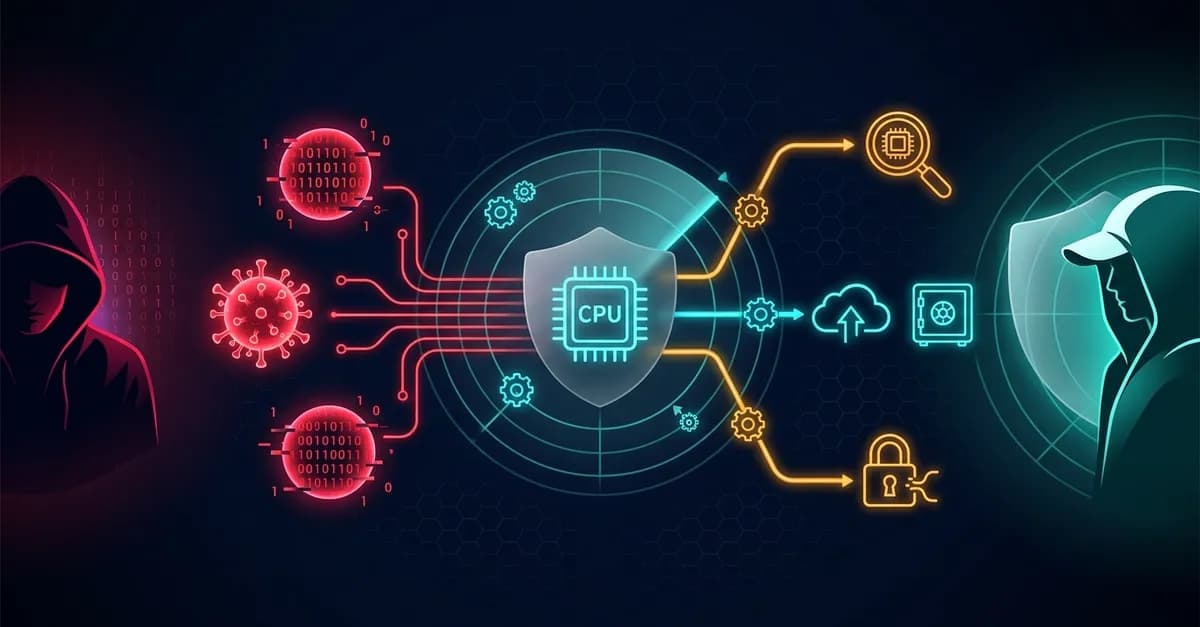
Detect, Collect, Isolate: Automated EC2 Malware Response with GuardDuty
Overview
It's 2 AM. GuardDuty just flagged a malware finding on one of your EC2 instances. What happens next determines whether you have a contained incident or a full-blown breach. If the answer is "someone gets paged and logs in manually" — you already have a problem.
This blog walks through building a fully automated incident response pipeline on AWS that triggers the moment GuardDuty raises a malware finding — no human in the loop, no delay.
The goal is to achieve three things automatically, without any human action:
- Collect forensic evidence — capture a live memory dump, running processes, network connections, and a full EBS snapshot of the compromised instance
- Upload to S3 — preserve all artifacts in a secure, durable location before any evidence is lost
- Isolate the instance — replace its security group with a lockdown SG that cuts off all inbound and outbound network access, containing the threat immediately
The pipeline is built entirely on native AWS services — GuardDuty, EventBridge, SSM Automation, SNS, S3, and EC2 — with no third-party tooling required.
CLI note: All AWS CLI commands in this blog were run using AWS CloudShell directly from the AWS Console — no local CLI setup or credentials configuration needed. You can launch CloudShell from the top navigation bar in the AWS Console (the terminal icon
>_). It comes with the AWS CLI pre-installed and automatically authenticated to your account.
What is Amazon GuardDuty?
Amazon GuardDuty is a managed threat detection service that continuously analyses:
- VPC Flow Logs
- DNS Logs
- CloudTrail Events
It uses threat intelligence, behavioural analysis, and ML models to detect:
- Credential Compromise
- Crypto Mining
- Backdoor Communication
- Malware Detection
GuardDuty is not a preventive control — it is a detective control. It detects and signals; what you build on top of it is what actually stops the damage — which is exactly what this blog is about.
Types of Malware Protection in GuardDuty
Amazon GuardDuty provides agentless malware scanning for EC2 instances. There are two types of malware scans:
1. GuardDuty Initiated Malware Scan
This scan runs automatically when GuardDuty detects malware-related findings on an EC2 instance. It creates snapshots of the instance's attached EBS volumes and scans those snapshots for known malware and suspicious artifacts.
If malware is found, GuardDuty generates a malware finding linked to the original security signal.
2. On-Demand Malware Scan
An on-demand scan is manually triggered by the user and does not depend on existing GuardDuty findings. When initiated, GuardDuty follows the same procedure — taking EBS snapshots, scanning them for malware, and reporting the result as a GuardDuty Malware Finding if detected.
This scan type is commonly used during investigations, after remediation, or to proactively verify an instance. We will use this later to validate our workflow.
Prerequisites
Before we get started with the implementation, the following must be in place.
1. AWS Account
An active AWS Account with permissions to manage EC2, IAM, SSM, GuardDuty, EventBridge, SNS, S3 and CloudFormation.
2. EC2 Instance
Any Linux-based EC2 instance will work — this will be the target instance for the malware simulation and forensic workflow. For this demo I am using Amazon Linux 2023.
SSM Agent must be running on the instance for Run Command and Session Manager to function. Amazon Linux 2 and Amazon Linux 2023 come with SSM Agent pre-installed and running. Newer AMIs of Ubuntu, CentOS, and RHEL may also include it out of the box — but don't assume. Verify it is active before proceeding:
sudo systemctl status amazon-ssm-agent
Enter fullscreen mode Exit fullscreen mode
If it is not installed or not running, follow the official SSM Agent installation guide for your specific distribution.
3. IAM Role for the EC2 Instance
Attach an IAM role to the instance with the following two policies:
AmazonSSMManagedInstanceCore — AWS managed policy, allows SSM Agent to communicate with the Systems Manager service (required for Run Command and Session Manager).
S3 Evidence Upload — inline policy granting the instance permission to upload forensic archives to the S3 bucket:
{
  "Version": "2012-10-17",
  "Statement": [
    {
      "Effect": "Allow",
      "Action": "s3:PutObject",
      "Resource": "arn:aws:s3:::guardduty-malware-demo/guardduty-ec2-malware/*"
    }
  ]
}
Enter fullscreen mode Exit fullscreen mode
The instance uploads forensic data to S3 using its own IAM role — not the SSM Automation role — since the script runs directly on the instance.
KMS for Session Manager (optional) — only if you enable encryption of Session Manager data with a customer-managed KMS key in Systems Manager → Session Manager → Preferences. The SSM agent on the instance must be allowed to use that key for the session channel (including after isolation, when traffic goes through the KMS VPC endpoint). Add an inline policy on the same instance role that grants kms:Decrypt on your key ARN (replace with your key ID, Account ID and Region):
{
  "Version": "2012-10-17",
  "Statement": [
    {
      "Effect": "Allow",
      "Action": [
        "kms:Decrypt"
      ],
      "Resource": "arn:aws:kms:REGION:ACCOUNT_ID:key/KEY_ID"
    }
  ]
}
Enter fullscreen mode Exit fullscreen mode
If you are not using KMS for Session Manager, skip this policy and the KMS VPC endpoint in the deployment section.
4. S3 Bucket for Forensic Evidence
Create the S3 bucket that will store forensic archives and confirm it exists before running the automation:
aws s3 mb s3://guardduty-malware-demo --region ap-south-1
Enter fullscreen mode Exit fullscreen mode
Replace
guardduty-malware-demowith your own bucket name. Once you’ve done that, update the S3 Evidence Upload inline policy in section 3 (theResourceARN). When you reach Create the SSM Automation Document, set the document's defaultS3BucketNameinssm-automation-document-inline.jsonto match.
Enable GuardDuty and Malware Protection for EC2
Enable GuardDuty in your AWS account if not already active.
Once GuardDuty is enabled, go to Malware Protection on the left pane and enable the feature for EC2.
Deploy VPC Interface Endpoints
We deploy the following four VPC Interface Endpoints:
-
ssm,ssmmessages,ec2messages— core SSM endpoints required for two reasons:- During forensic collection: SSM Run Command needs to reach the instance to execute the forensic script, particularly when the instance is in a private subnet with no internet route.
- After isolation: Once the isolation SG is applied, all internet access is cut off. These endpoints are the only way to connect to the instance via Session Manager for further manual forensic investigation.
-
kms— required only if your SSM sessions are encrypted with a customer-managed KMS key. When KMS encryption is enabled, the SSM agent must call the KMS API to generate and decrypt session data keys — without this endpoint, that call fails on an isolated instance since there is no internet access. If you are not using KMS session encryption, you can remove this endpoint from the CloudFormation template.
Public subnet note: If your instance is in a public subnet and you only need SSM during the automated collection phase (before isolation), VPC endpoints are not strictly required — SSM works over the internet. However, they are still needed for post-isolation Session Manager access regardless of subnet type.
Use this CloudFormation template to create the SSM endpoints:
aws cloudformation create-stack \
  --stack-name vpc-ssm-endpoints \
  --template-body file://vpc-ssm-endpoints.yaml \
  --parameters \
    ParameterKey=VpcId,ParameterValue=vpc-xxxxx \
    ParameterKey=VpcCidr,ParameterValue=10.0.0.0/16 \
    ParameterKey=SubnetIds,ParameterValue="subnet-xxxxx\,subnet-yyyyy"
Enter fullscreen mode Exit fullscreen mode
SubnetIds — subnets where your EC2 instances are launched. Deploy endpoints across multiple subnets for fault tolerance, or a single subnet to minimise cost — interface endpoints are billed per Availability Zone.
Create the Isolation Security Group
This security group is attached to the compromised instance as the final automation step. It blocks all inbound traffic and restricts outbound to HTTPS only towards the SSM VPC endpoints — keeping the instance completely isolated from the internet and all other VPC resources while still allowing Session Manager access for post-isolation forensic investigation.
Create the isolation SG
aws ec2 create-security-group \
  --group-name ec2-isolation-sg \
  --description "Isolation SG - SSM access only, no internet" \
  --vpc-id vpc-xxxxx
Enter fullscreen mode Exit fullscreen mode
Remove the default allow-all egress rule
aws ec2 revoke-security-group-egress \
  --group-id sg-ISOLATION_SG_ID \
  --protocol -1 \
  --cidr 0.0.0.0/0
Enter fullscreen mode Exit fullscreen mode
Get the SSM endpoint SG ID from the CloudFormation stack output
ENDPOINT_SG=$(aws cloudformation describe-stacks \
  --stack-name vpc-ssm-endpoints \
  --query 'Stacks[0].Outputs[?OutputKey==`EndpointSecurityGroupId`].OutputValue' \
  --output text --region ap-south-1)
Enter fullscreen mode Exit fullscreen mode
Add outbound rule allowing HTTPS only to the SSM endpoint SG
aws ec2 authorize-security-group-egress \
  --group-id sg-ISOLATION_SG_ID \
  --protocol tcp \
  --port 443 \
  --source-group $ENDPOINT_SG \
  --region ap-south-1
Enter fullscreen mode Exit fullscreen mode
The isolation SG now has:
- Inbound: no rules — no traffic can reach the instance
- Outbound: HTTPS (443) to the SSM endpoint SG only — allows Session Manager for post-isolation forensics, blocks everything else including internet
Why not allow-all outbound? Allowing only the SSM endpoint SG as the destination means the instance can talk to SSM but cannot reach any other host in the VPC or the internet, even over HTTPS. This is a tightly scoped rule that preserves network isolation while enabling investigator access.
SSM Automation IAM Role
This role is used by the SSM Automation document during execution.
Create trust policy
cat > ssm-automation-trust-policy.json <<EOF
{
  "Version": "2012-10-17",
  "Statement": [{
    "Effect": "Allow",
    "Principal": {"Service": "ssm.amazonaws.com"},
    "Action": "sts:AssumeRole"
  }]
}
EOF
Enter fullscreen mode Exit fullscreen mode
Create IAM Role
aws iam create-role \
  --role-name GuardDuty-SSM-Automation-Role \
  --assume-role-policy-document file://ssm-automation-trust-policy.json
Enter fullscreen mode Exit fullscreen mode
Attach Inline Policy
cat > ssm-automation-permissions.json <<EOF
{
  "Version": "2012-10-17",
  "Statement": [{
    "Effect": "Allow",
    "Action": [
      "ec2:DescribeInstances",
      "ec2:ModifyInstanceAttribute",
      "ec2:CreateSnapshot",
      "ec2:CreateTags",
      "ssm:SendCommand",
      "ssm:ListCommands",
      "ssm:ListCommandInvocations",
      "ssm:GetCommandInvocation",
      "ssm:DescribeInstanceInformation"
    ],
    "Resource": "*"
  }]
}
EOF
Enter fullscreen mode Exit fullscreen mode
aws iam put-role-policy \
  --role-name GuardDuty-SSM-Automation-Role \
  --policy-name SSM-Automation-Permissions \
  --policy-document file://ssm-automation-permissions.json
Enter fullscreen mode Exit fullscreen mode
Installing Forensic Collection Prerequisites
The automation triggers immediately on a GuardDuty finding and cannot download tools at runtime. Install the following on the instance in advance — ideally as part of your golden AMI, or on-demand via SSM for existing instances.
AVML
Already running instances
aws ssm send-command \
  --document-name "AWS-RunShellScript" \
  --targets "Key=tag:Environment,Values=nonProd" \
  --parameters 'commands=["wget -q https://github.com/microsoft/avml/releases/download/v0.14.0/avml -O /usr/bin/avml","chmod +x /usr/bin/avml","avml --version"]'
Enter fullscreen mode Exit fullscreen mode
New instance user data
#!/bin/bash
wget -q https://github.com/microsoft/avml/releases/download/v0.14.0/avml -O /usr/bin/avml
chmod +x /usr/bin/avml
Enter fullscreen mode Exit fullscreen mode
AWS CLI
Follow the official documentation to install AWS CLI on your instance.
Create the SSM Automation Document
Download the SSM Automation Document.
The default reaction is to isolate immediately — but that will make the instance go dark and cut off our S3 upload path. In practice, it’s often more effective to grab the forensic data first, then lock things down.
The automation executes the following steps in order:
Step
Action
Why
GetInstanceDetails
Looks up the EBS volume ID
Required for snapshot creation
CollectForensicData
Captures live memory, processes, network connections and uploads to S3
Done first, while the instance still has network access
CreateEBSSnapshot
Creates a forensic EBS snapshot
EC2 API call — no instance network access needed
ReplaceSecurityGroup
Swaps to the isolation SG
Network lockdown happens last, after data is safely in S3
The document accepts the following parameters:
Parameter
Required
Default
Description
InstanceId
Yes
—
EC2 instance ID from the GuardDuty finding
IsolationSecurityGroupId
Yes
—
ID of the isolation SG to apply as the final step
AutomationAssumeRole
Yes
—
ARN of the IAM role assumed by SSM Automation during execution
S3BucketName
No
guardduty-malware-demo
S3 bucket where forensic archives are uploaded. Override by updating the default value in the document or passing it explicitly in the EventBridge InputTemplate.
AwsRegion
No
ap-south-1
AWS region for the S3 upload — passed explicitly to avoid runtime region detection failures on instances with restricted IMDS access. Override by updating the AwsRegion value in eventbridge-targets.json InputTemplate before running put-targets.
Create the SSM Automation document
aws ssm create-document \
  --name GuardDuty-EC2-Isolate-And-Collect \
  --document-type Automation \
  --document-format JSON \
  --content file://ssm-automation-document-inline.json
Enter fullscreen mode Exit fullscreen mode
Create IAM Role for EventBridge
Create trust policy
cat > eventbridge-trust-policy.json <<EOF
{
  "Version": "2012-10-17",
  "Statement": [{
    "Effect": "Allow",
    "Principal": {"Service": "events.amazonaws.com"},
    "Action": "sts:AssumeRole"
  }]
}
EOF
Enter fullscreen mode Exit fullscreen mode
Create role
aws iam create-role \
  --role-name GuardDuty-EventBridge-Role \
  --assume-role-policy-document file://eventbridge-trust-policy.json
Enter fullscreen mode Exit fullscreen mode
Attach permissions
cat > eventbridge-permissions.json <<EOF
{
  "Version": "2012-10-17",
  "Statement": [
    {
      "Effect": "Allow",
      "Action": "ssm:StartAutomationExecution",
      "Resource": "arn:aws:ssm:*:*:automation-definition/GuardDuty-EC2-Isolate-And-Collect:*"
    },
    {
      "Effect": "Allow",
      "Action": "sns:Publish",
      "Resource": "arn:aws:sns:*:*:guardduty-malware-alerts"
    },
    {
      "Effect": "Allow",
      "Action": "iam:PassRole",
      "Resource": "arn:aws:iam::*:role/GuardDuty-SSM-Automation-Role"
    }
  ]
}
EOF
Enter fullscreen mode Exit fullscreen mode
aws iam put-role-policy \
  --role-name GuardDuty-EventBridge-Role \
  --policy-name EventBridge-Permissions \
  --policy-document file://eventbridge-permissions.json
Enter fullscreen mode Exit fullscreen mode
Create SNS Topic for Notifications
aws sns create-topic --name guardduty-malware-alerts --region ap-south-1
Enter fullscreen mode Exit fullscreen mode
Subscribe your email
aws sns subscribe \
  --topic-arn arn:aws:sns:REGION:ACCOUNT_ID:guardduty-malware-alerts \
  --protocol email \
  --notification-endpoint your-email@example.com
Enter fullscreen mode Exit fullscreen mode
Confirm the subscription from your email
Create EventBridge Rule
Download eventbridge-rule-pattern.json.
aws events put-rule \
  --name guardduty-malware-response \
  --event-pattern file://eventbridge-rule-pattern.json \
  --state ENABLED \
  --role-arn arn:aws:iam::ACCOUNT_ID:role/GuardDuty-EventBridge-Role
Enter fullscreen mode Exit fullscreen mode
Download eventbridge-targets.json and replace the following placeholders before running the command:
Placeholder
Replace with
REGION
Your AWS region (e.g. ap-south-1)
ACCOUNT_ID
Your 12-digit AWS account ID
sg-YOUR_ISOLATION_SG_ID
The isolation SG ID created earlier
AwsRegion value
Replace ap-south-1 with your actual AWS region if you are not deploying in Mumbai (e.g. us-east-1, eu-west-1)
Add EventBridge targets (SNS + SSM)
aws events put-targets \
  --rule guardduty-malware-response \
  --targets file://eventbridge-targets.json
Enter fullscreen mode Exit fullscreen mode
Test with EICAR Malware
Step 1 — Connect to the instance via Session Manager
Via AWS Console:
Go to EC2 → Instances → select your instance → Connect → Session Manager tab → Connect.
Via CLI:
aws ssm start-session \
  --target i-INSTANCE_ID \
  --region ap-south-1
Enter fullscreen mode Exit fullscreen mode
Once connected, switch to the ec2-user (or your OS-specific user) for the correct home directory context:
sudo su - ec2-user
Enter fullscreen mode Exit fullscreen mode
Step 2 — Download the EICAR test file
EICAR is a completely harmless standardised test file — it contains no malicious code, but antivirus and detection tools are programmed to flag it exactly as they would real malware. It's the industry-standard safe way to test detection pipelines.
curl -o /home/ec2-user/eicar.com https://secure.eicar.org/eicar.com
Enter fullscreen mode Exit fullscreen mode
The path
/home/ec2-user/is the default home directory on Amazon Linux. Replaceec2-userwith the appropriate username for your OS — for exampleubuntuon Ubuntu, orcentoson CentOS.
Validate the Workflow with an On-Demand Malware Scan
Rather than waiting for GuardDuty to detect the file organically, we will trigger an On-Demand Malware Scan directly against the instance to validate the end-to-end workflow.
Note: GuardDuty on-demand malware scanning is not covered under the free trial.
Get the instance ARN
Go to EC2 Console → Instances → select your instance → Details tab and copy the Instance ARN field. It follows the format:
arn:aws:ec2:ap-south-1:ACCOUNT_ID:instance/i-INSTANCE_ID
Enter fullscreen mode Exit fullscreen mode
Trigger the on-demand scan
- Open the GuardDuty console in the correct Region (e.g. ap-south-1).
- In the left navigation pane, open Malware Protection, then View Feature for EC2.
- Paste the Amazon EC2 instance ARN for On-Demand malware scan and start scan.
- Click on See malware scan details to monitor the malware scan.
GuardDuty will detect the file and raise a Execution:EC2/MaliciousFile finding.
This finding triggers the configured EventBridge rule, which in turn starts the SSM Automation — mirroring the same flow as an organic detection. At the same time, an SNS notification is sent to alert responders.
SSM Automation
As part of the automated response, the runbook performs the following actions:
- Collect live forensic data (memory, processes, network connections) and upload to S3
- Create an EBS snapshot of the root volume
- Replace the instance's security group with the isolation SG — cutting off all internet and VPC traffic
Successful SSM Automation Execution
What's inside the forensic archive
Once uploaded to S3, the tar.gz contains a complete snapshot of the instance's runtime state at the time of detection:
File / Folder
What it contains
memory.lime
Full memory dump captured by AVML — used for deep malware analysis, extracting encryption keys, recovering injected code
processes.txt
Full process list with user, CPU, memory, command line (ps auxww)
process-tree.txt
Process tree with PID, PPID, state and start time — helps identify parent-child relationships of suspicious processes
network-connections.txt
All active TCP/UDP connections and listening ports — identifies C2 channels or lateral movement
proc/
Per-process details from /proc — command line, environment variables, open file descriptors and status for every running process
mounts.txt
Mounted filesystems — identifies unexpected mounts or bind mounts used for evasion
disk-usage.txt
Filesystem usage at time of collection
system-info.txt
Kernel version and architecture (uname -a)
os-release.txt
OS distribution and version
active-users.txt
Currently logged-in users (who)
recent-logins.txt
Last 20 login events — identifies suspicious access prior to detection
crontab.txt
Root crontab — checks for persistence via scheduled tasks
cron-jobs.txt
Contents of /etc/cron.* directories — system-wide scheduled jobs
Isolated EC2 instance
After isolation, you can still connect to the instance via Session Manager for further manual forensic investigation — refer to the Session Manager connect steps in the Test with EICAR Malware section above.
Cleanup
Once you are done testing, remove all resources created in this demo to avoid unnecessary charges.
1. Restore the instance's original security group (before terminating or reusing it)
aws ec2 modify-instance-attribute \
  --instance-id i-INSTANCE_ID \
  --groups sg-ORIGINAL_SG_ID \
  --region ap-south-1
Enter fullscreen mode Exit fullscreen mode
2. Delete the EventBridge rule and targets
aws events remove-targets \
  --rule guardduty-malware-response \
  --ids "1" "2" \
  --region ap-south-1

aws events delete-rule \
  --name guardduty-malware-response \
  --region ap-south-1
Enter fullscreen mode Exit fullscreen mode
3. Delete the SNS topic
aws sns delete-topic \
  --topic-arn arn:aws:sns:ap-south-1:ACCOUNT_ID:guardduty-malware-alerts \
  --region ap-south-1
Enter fullscreen mode Exit fullscreen mode
4. Delete the SSM Automation document
aws ssm delete-document \
  --name GuardDuty-EC2-Isolate-And-Collect \
  --region ap-south-1
Enter fullscreen mode Exit fullscreen mode
5. Delete the IAM roles and their inline policies
aws iam delete-role-policy --role-name GuardDuty-SSM-Automation-Role --policy-name SSM-Automation-Permissions
aws iam delete-role --role-name GuardDuty-SSM-Automation-Role

aws iam delete-role-policy --role-name GuardDuty-EventBridge-Role --policy-name EventBridge-Permissions
aws iam delete-role --role-name GuardDuty-EventBridge-Role
Enter fullscreen mode Exit fullscreen mode
6. Delete the isolation security group
aws ec2 delete-security-group \
  --group-id sg-ISOLATION_SG_ID \
  --region ap-south-1
Enter fullscreen mode Exit fullscreen mode
7. Delete the CloudFormation stack (SSM VPC endpoints)
aws cloudformation delete-stack \
  --stack-name vpc-ssm-endpoints \
  --region ap-south-1
Enter fullscreen mode Exit fullscreen mode
8. Delete forensic EBS snapshots
aws ec2 describe-snapshots \
  --filters "Name=tag:Forensics,Values=GuardDuty-Malware" \
  --query 'Snapshots[*].SnapshotId' \
  --output text --region ap-south-1 | \
  tr '\t' '\n' | xargs -I {} aws ec2 delete-snapshot --snapshot-id {} --region ap-south-1
Enter fullscreen mode Exit fullscreen mode
9. Empty and delete the S3 bucket
aws s3 rm s3://guardduty-malware-demo --recursive --region ap-south-1
aws s3 rb s3://guardduty-malware-demo --region ap-south-1
Enter fullscreen mode Exit fullscreen mode
10. Terminate the EC2 instance (if no longer needed)
aws ec2 terminate-instances \
  --instance-ids i-INSTANCE_ID \
  --region ap-south-1
Enter fullscreen mode Exit fullscreen mode
Closing Thoughts
In this demo we built a fully automated, event-driven incident response pipeline entirely on native AWS services. The moment GuardDuty raises a malware finding, the pipeline springs into action — collecting live forensic evidence, snapshotting the EBS volume, uploading everything to S3, and locking down the instance — all without a single manual step.
A few things worth carrying forward if you are moving this towards production:
- Golden AMI — bake AVML and the AWS CLI into your base image so every instance is always ready for forensic collection without any on-demand installation
- Scope the IAM policies — the SSM Automation role uses
Resource: *for simplicity here; in production, restrict actions to specific instance IDs and snapshot ARNs where possible - S3 bucket hardening — enable versioning, server-side encryption, and an S3 Object Lock policy on the forensics bucket to make evidence tamper-proof
- Multi-account / multi-region — if you run workloads across accounts, consider centralising the forensics bucket and deploying the EventBridge rule via AWS Organizations
The full source for all files used in this demo is available on GitHub.
The next time GuardDuty pages at 2 AM, your only job is to open the S3 bucket.
Source: Dev.to